

I am working for a client which uses a Datawarehouse in which the data is loaded once a day during the night. During the rest of the day, nothing changes in the datawarehouse. After a couple of years, the database grows and grows and reports are getting slower and slower. Another problem is that they use Reporting Services as a front-end tool with some reports performing very bad, also after tweaking indexes and queries. This article will give you a method of using caching to fix the performance problems and speed up your reporting services report by 100%!
We use several heavy reports in Microsoft Reporting Services to show data to the business users, and it really saves the day to cache them. Caching means that the server saves a temporary “snapshot” of the report in it’s cache so it will popup immediately! The performance improvement is great, but there is one problem. I don’t know exactly when the data is “ready to serve”, and I need to refresh the cached reports dynamically. With dynamically I mean, parameter based. I also need to cleanup the SSRS Cache first.
In Microsoft Reporting Services, there are two options for pre-loading Reports; caching and snapshots. A snapshot is like a piece of paper, a static instance of the report. After the snapshot is taken, nothing can be changed in the parameters. Caching is different. It can save different “instances” of the report (same report with different parameters configurations) and can save this into the TempDB till it expires. A cached instance will be cleaned from cache after it expires. There is no way you can “Re-Cache” things (only with an advanced cache refresh plan, out of scope). When you re-run caching, SSRS looks in the database for the Instance and sees that it is already cached and will leave the old results in database. It will do this with the parameters given (fingerprint). This is a very important thing to understand. A report won’t stay in the cache indefinitely. It will be removed if the report is set to expire, if the report is modified, if the parameters are modified, if the credentials of the data source change, if any other execution options change, or if you delete the report.
So one thing to keep in mind with Null Delivery is that the copy of the report in cache must be expired before you create a new copy using this method. I would suggest setting up the report cache to expire on a specific schedule, shortly before this subscription runs.
There are two methods of getting (not refreshing, this is a wrong term) the data of the cache or a snapshot; specific on a time OR with a shared schedule. As you can see, none of these options work for me, so I looked a bit in detail in what options I have to refresh the cache manually.
Concept: we use two shared schedules, these are dummy shared schedules. We will attach the reports we want to cache/expire to this shared schedules. The first one we use to trigger report cache expiration. The second one we use for caching the results. At the end of our datawarehouse load, we trigger the shared schedules at a specific moment,. All the caching of the attached reports will be deleted and will be refilled!
I will take you through the steps to get the job done!
Step 1 – Create two dummy shared schedules
You need proper permission on the SSRS manager to get the “Site Settings” button on top of report manager:
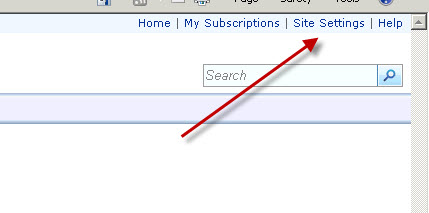

Click on the Site Settings, Schedules, New Schedule. Give it a meaningfull name, something like
“DWH_SharedSchedule_ForCaching_DoNotChangeOrDelete” “DWH_SharedSchedule_ForExpireCaching_DoNotChangeOrDelete”
We use this to activate caching and cleaning cach for all reports.


SELECT C.Name, EC.*
FROM ReportServerTempDB.dbo.ExecutionCache AS EC
INNER JOIN ReportServer.dbo.Catalog AS C ON EC.ReportID = C.ItemID
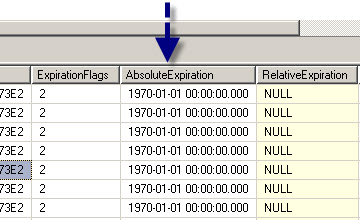

The Next run is in future, schedule also and expired column is empty! Double check!

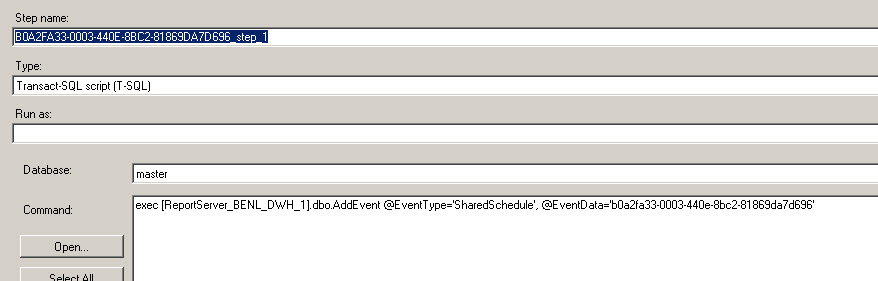
SSRS will create an agent job for this schedule. You can view this job in the Agent. The scheduling of this job will be set to the time you have defined. You can also check the step it creates! For now, we delete this job. It pollute your agent job tasks and we don’t start the job via the agent. We will start the job in SSIS at the end of our ETL process.


Step 2 – Setup a NULL Delivery Subscription
Go to the SSRS report (via report manager) which is performing bad, this one is going to be setup for caching via a NULL Delivery subscription.
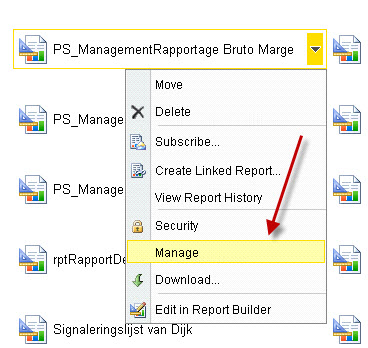

Click on the “Subscription” tab and create a new data driven subcription of type “Null Delivery Provider”.
You need a SQL Server Enterprise License to use this feature. When the button is not there, you probably have the Standard Edition.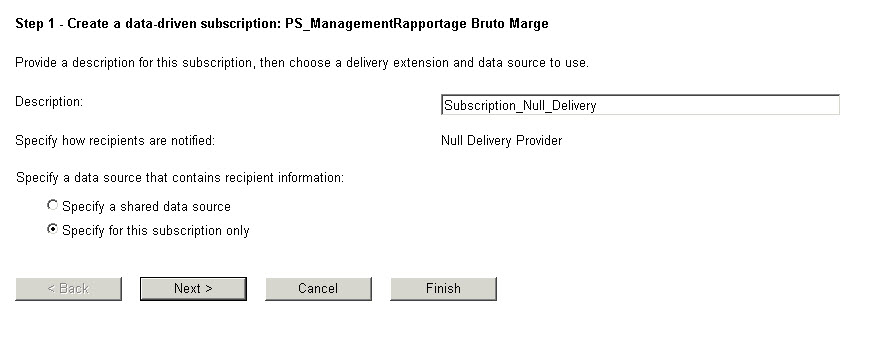

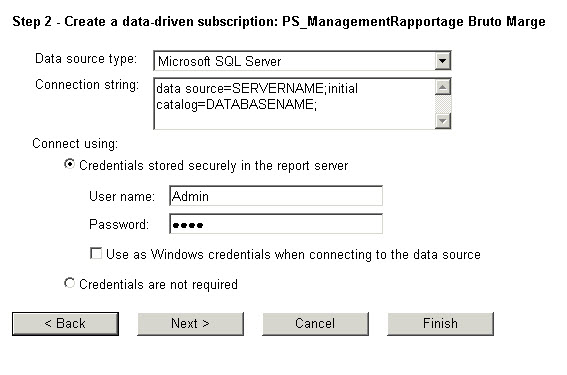

Note that you have to enter the password every time you edit the subscription.


As you can see, I use a database view. In this view I can generate all parameter combinations for which I want to cache the report. This can be just one line of a lot of lines. Example;


Press Validate to check if everything is fine. Press next, next.
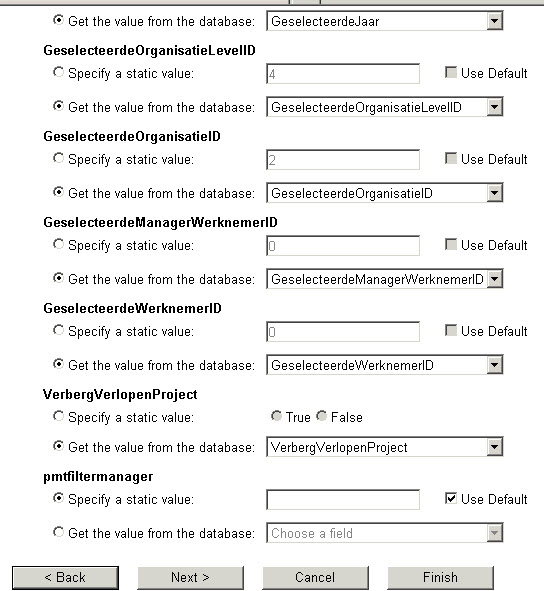

Now map every parameter from the view or sql command to the report parameter. Every combination will be cached. Each time you edit this subscription, you have to complete the connection password.
In the final step, we attach this subscription to the dummy shared schedule:


Step 3 – Confgure Caching
Go back to the “Manage Report” screen and choose “Processing Options” on the left. Choose:
 |


Step 4 – Running the Shared Schedules
Now we have setup a Data Driven Subscription of Type “NULL Delivery”. Nothing will be send by mail, just generate the report for caching purposes. The next thing is to give the shared schedule a kick so it will run. This can be done using the AddEvent procedure against the Report Server database. First we retrieve the GUID of t he dummy shared schedule. Then we add the SharedSchedule event to the event table. SSRS scans this table every second and will execute it! But important, first clean the cache of all reports, attached to expire with this shared schedule.
-- Cleanup Cache
DECLARE @ExpiredScheduleID UNIQUEIDENTIFIER
DECLARE @ExpiredScheduleName AS VARCHAR(128) = 'DWH_SharedSchedule_ForExpireCaching_DoNotChangeOrDelete'
-- Get the Schedule identifier
SET @ExpiredScheduleID = (SELECT ScheduleID FROM ReportServer_BENL_DWH_1.dbo.SCHEDULE WHERE NAME = @ExpiredScheduleName)
-- pass the Schedule identifier to the Event insert procedure
EXEC ReportServer_BENL_DWH_1.dbo.AddEvent @EventType='SharedSchedule', @EventData=@ExpiredScheduleID

-- Execute a Shared Schedule:
DECLARE @ScheduleID UNIQUEIDENTIFIER
DECLARE @ScheduleName AS VARCHAR(128) = 'DWH_SharedSchedule_ForCaching_DoNotChangeOrDelete'
-- Get the Schedule identifier
SET @ScheduleID = (SELECT ScheduleID FROM ReportServer_BENL_DWH_1.dbo.SCHEDULE WHERE NAME = @ScheduleName)
-- pass the Schedule identifier to the Event insert procedure
EXEC ReportServer_BENL_DWH_1.dbo.AddEvent @EventType='SharedSchedule', @EventData=@ScheduleID
Step 5- Test
That’s it! Now you can test if it works by running the report. It can take a while to cache the report so be patient! You can see when the subscription has been run on this screen:


You can also check in the database if the result is cached and when it will expire (AbsoluteExpiration field).
SELECT C.Name, EC.*
FROM ReportServerTempDB.dbo.ExecutionCache AS EC
INNER JOIN ReportServer.dbo.Catalog AS C ON EC.ReportID = C.ItemID
[message_box title=”Important” color=”red”]Keep in mind that after setting “Cache a temporary copy of the report. Expire copy of report after a number of minutes” or using the shared schedule, it will expire after 9999 minutes and NOT when you re-run a NULL Delivery. I thought SSRS would cache the new results but it doesn’t! SSRS will save a fingerprint of the parameter configuration in history vs the cached result (ParamsHash colum in the ExectutionCache Table). When you re-run the subscription, SSRS will see that the result is already in cache, also when there is new data. It’s very important to cleanup the cache first![/message_box]
[adinserter block=”3″]
Note: There is no SQL command to refresh the cache of a NULL Delivery Provider, you need to do this via a shared schedule to expire cache. There is a command to refresh a cache refresh plan but we do the caching with the subscription. You can also cleanup the cache with this command (all caching will be deleted, also snapshots):
DELETE ReportServer_TempDB.dbo.SnapshotData
WHERE SnapshotDataID IN (SELECT EC.SnapshotDataID
FROM ReportServer_BENL_DWH_1.dbo.Catalog C
INNER JOIN ReportServer_TempDB.dbo.ExecutionCache EC ON EC.ReportID = C.ItemID
WHERE LEFT(C.Path,8) = '/DWH_NL/')

DELETE ReportServer_TempDB.dbo.ExecutionCache
WHERE SnapshotDataID IN (SELECT EC.SnapshotDataID
FROM ReportServer_BENL_DWH_1.dbo.Catalog C
INNER JOIN ReportServer_TempDB.dbo.ExecutionCache EC ON EC.ReportID = C.ItemID
WHERE LEFT(C.Path,8) = '/DWH_NL/')
You can also do some extra checks in the SSRS database so see the cache settings:
SELECT *
FROM ReportServe.dbo.CachePolicy

ExpireFlags: 1 = Expire after XXX minutes,  2 = Using a Shared Schedule
Check in the TemDB if the Report is cached:
SELECT *
FROM ReportServerTempDB.dbo.ExecutionCache
Another very handy option is to runn a single NULL Delivery Subscription (or another subscription) with a T-SQL statement:
EXEC [ReportServer].dbo.AddEvent @EventType = 'TimedSubscription', @EventData = 'E7F3A09D-8576-4EC7-A1DB-86E244E0A670'
Replace the UID with the UID of the subscriptionID from the dbo.Subscription table.
Update 12-nov-2013
Today, a client contacted me that SSRS was showing him wrong results. After doing investigation, I discovered that all ETL processes where loaded and the reporting cache was refreshed. What was going wrong? My ETL-package to refresh the cache looked like this:


I discovered this when I was looking in the execution log, the byte count for the NULL-delivery subscription was 0, this means that the report was run from Cache. So when the NULL delivery was activated, SSRS had a fingerprint of the parameters (so cache exists).


And here is the SQL statement which you can use to check if a NULL-Delivery Subscription has been run. This is an example for one report. Check the rowcount! If it’s 0, it means the report has been run from cache.
SELECT C.Name, EL.TimeStart, EL.TimeEnd,EL.*
FROM dbo.ExecutionLogStorage AS EL
INNER JOIN dbo.Catalog AS C ON EL.ReportID = C.ItemID
WHERE TimeStart > '2013-11-12'
AND C.Name = 'PS_ManagementRapportage Productiviteit'
I think SSRS needs some delay in processing caching and the expire cache option because I run this SQL from a stored procedure. This is hard to test. My solution for now is to delete alle the cache, hard coded. This can be accomplished with this SQL . I only delete the cache from the DWH_NL folder in this example.
DELETE ReportServerTempDB.dbo.ExecutionCache
WHERE SnapshotDataID IN (SELECT EC.SnapshotDataID
FROM ReportServer.dbo.Catalog C
INNER JOIN ReportServerTempDB.dbo.ExecutionCache EC ON EC.ReportID = C.ItemID
WHERE LEFT(C.Path,8) = '/DWH_NL/')
Update:
I added a delay between Expire Cache and the NULL Delivery share schedule:
-- RUN SHARED SCHEDULE: FOREXPIRECACHING TO ACTIVATE ALL NULL DELIVERY SUBSCRIPTIONS
DECLARE @ExpiredScheduleID UNIQUEIDENTIFIER
DECLARE @ExpiredScheduleName AS VARCHAR(128) = 'DWH_SharedSchedule_ForExpireCaching_DoNotChangeOrDelete'
-- Get the Schedule identifier
SET @ExpiredScheduleID = (SELECT ScheduleID FROM ReportServer.dbo.SCHEDULE WHERE NAME = @ExpiredScheduleName)
-- pass the Schedule identifier to the Event insert procedure
EXEC ReportServer.dbo.AddEvent @EventType='SharedSchedule', @EventData=@ExpiredScheduleID

-- There can be an issue with caching if the expiration is not 100% complete. We set a WAIT
-- command to know sure that all cache has been expired.
--The format is hh:mi:ss.mmm.
WAITFOR DELAY '00:02:00.000';

-- RUN SHARED SCHEDULE: FORCACHING TO ACTIVATE ALL NULL DELIVERY SUBSCRIPTIONS
DECLARE @ScheduleID UNIQUEIDENTIFIER
DECLARE @ScheduleName AS VARCHAR(128) = 'DWH_SharedSchedule_ForCaching_DoNotChangeOrDelete'
SET @ScheduleID = (SELECT ScheduleID FROM ReportServer.dbo.SCHEDULE WHERE NAME = @ScheduleName)
EXEC ReportServer.dbo.AddEvent @EventType='SharedSchedule', @EventData=@ScheduleID
Possible issues
We are using this method for seven years now. After migrating to a new server, we discovered that the SSRS caching mechanism didn’t work anymore. When I looked at the subscription page in Report Manager, it looked that the subscription was working fine. It said that all subscriptions where executed. When I run a reports, it was very, very slow. When I opened a report, I checked the dbo.ExecutionCache table. One record appeared in the table so it was cached. When I re-opened the same report, a new record was cached with the same data! Pretty strang! After a long investigation, I found out that the cache expiration was attached to an expired schedule!


When you attach a subscription cache to and expired shared schedulde, Reporting Services will automatically delete the cache after XXX minutes! So the best thing you can do is put the shared schedule one year in the future so it’s not expired!